
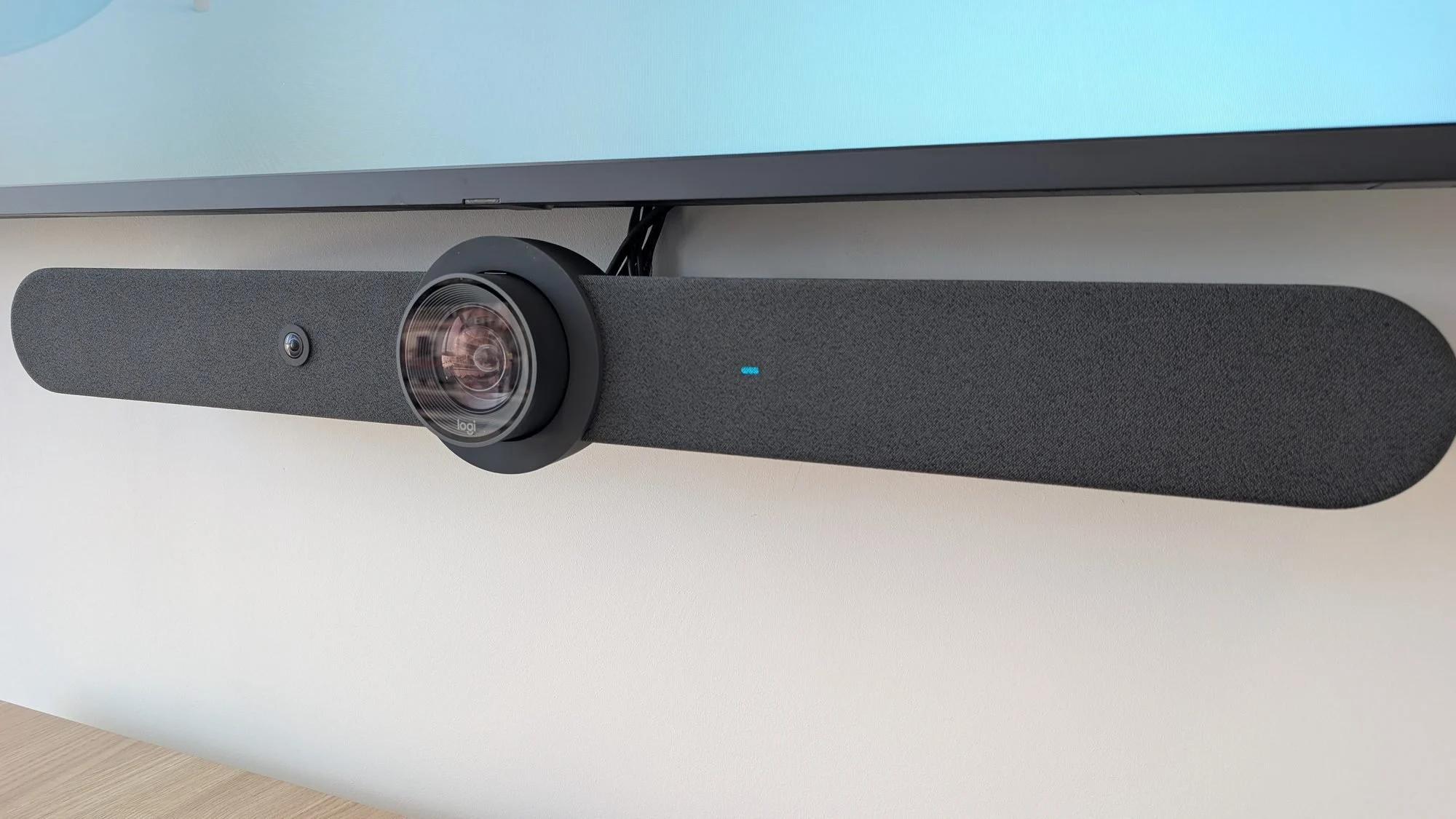
A video conferencing room that works well goes unnoticed. One that works badly shows in every meeting: remote participants who can’t hear, a picture framed on the ceiling, five minutes to connect and calls that drop. In most cases the video conferencing kit isn’t the problem: the choice for the room size, the acoustics, the installation or the network behind it are.
This guide sets out the criteria we apply when designing rooms with the Logitech Rally family, one of the platforms we deploy most, though most apply to any vendor: choosing the kit, operating mode, acoustics, installation, network requirements and management.
Contents
- Choosing the kit for the room.
- Appliance mode or PC mode.
- Acoustics: the most underrated factor.
- Camera, display and framing.
- Network requirements.
- Accounts, licences and room booking.
- Management and maintenance.
- Common mistakes.
1. Choosing the kit for the room
The Rally family covers everything from two- or three-person spaces to boardrooms. The choice depends on the room’s size and shape, the distance between the camera and the furthest seat, and whether the table is long or compact:
- Rally Bar Huddle and Rally Bar Mini: all-in-one bars for small rooms and huddle spaces.
- Rally Bar: all-in-one bar with a motorised camera and optical zoom for medium rooms.
- Modular Rally system: separate PTZ camera, speakers and microphones for large rooms, long tables or spaces with specific acoustic requirements.
The bars have built-in microphones with limited reach. On long tables, the seats at the far end fall outside the optimal pickup zone and it needs extending with table microphones (Rally Mic Pod). Sizing by headcount without considering the shape is behind many rooms where remote participants can’t hear part of the table properly.
2. Appliance mode or PC mode
Rally bars can work in two ways. In appliance mode, the device itself runs the video conferencing platform (Microsoft Teams Rooms, Zoom Rooms or Google Meet, depending on model and certification) and is controlled from a networked touch console such as Logitech Tap IP. In PC mode, the bar acts as a USB peripheral for a computer dedicated to the room, which runs the platform, usually Teams Rooms on Windows, and is controlled with Logitech Tap.
Rule of thumb: appliance mode reduces components, points of failure and maintenance, and it’s our default for small and medium rooms. PC mode makes sense when you need features only the Windows version of the platform offers, integration with other room systems or a corporate policy for managing Windows devices. Either way, plan for guest laptops to connect over HDMI or USB-C for presenting or for meetings on other platforms.
3. Acoustics: the most underrated factor
Today’s meeting rooms, with glass walls, hard floors, flat ceilings and little furniture, are acoustically very reverberant. The devices’ audio processing (echo cancellation, noise suppression, gain control) has its limits: if the room reverberates too much, remote participants will hear a distant, muddy voice whatever kit is installed. Noise from air conditioning, projectors and fan-cooled equipment is picked up too.
Rule of thumb: assess the room before choosing the kit. Absorbent panels on parallel walls, especially the wall opposite the bar, rugs or carpet and curtains over the glass noticeably improve intelligibility. Keep microphones away from air-conditioning vents and speakers, and avoid putting the bar inside a cabinet or recess that changes its response.
4. Camera, display and framing
The camera should sit at the eye level of seated participants, as close to the display as possible, so people naturally look into the camera. In practice that means the bar directly below the display, or above it if the display is very low. A camera mounted too high produces an unnatural downward angle.
Display size is set by the distance to the furthest seat, so remote participants and shared content can be read comfortably. In medium and large rooms, a dual-display setup, one for participants and one for content, makes a marked difference. Auto-framing (RightSight) adjusts the picture to the people present, but only works well if the camera has a clear view of the whole table.
5. Network requirements
Video conferencing is real-time traffic: it copes badly with latency, jitter and packet loss, far more than with a lack of bandwidth. Most of the quality problems users blame on the room, such as a pixelated picture, choppy audio or dropped calls, start in the network.
- Wired connection: the bar and the console, always wired. Wi-Fi only as a fallback.
- Dedicated segment: a VLAN for room devices, with DHCP reservations, reliable internal DNS and NTP time sync. See our network segmentation guide.
- PoE: enough budget on the switch for the Tap IP consoles and the network-powered booking panels.
- Firewall: allow the destinations and ports each platform publishes (Microsoft 365, Zoom, Google) and the management platform, with no SSL inspection on that traffic and the media UDP ports open (for Teams, UDP 3478 to 3481). If media traffic is forced over TCP or through a proxy, quality degrades.
- QoS: DSCP marking of audio and video traffic (in Teams, EF for audio and AF41 for video by default) and switches and firewall honouring those markings, especially on the WAN link.
Diagnosis: the platforms provide per-call quality data (in Teams, the Call Quality Dashboard and the Teams Rooms Pro management portal) with latency, jitter and packet loss per participant. If the metrics degrade only from the room and not from other desks on the same network, check the cabling, the switch port and the device configuration; if they degrade across the office, check the WAN and QoS.
6. Accounts, licences and room booking
Each room needs its own resource account on the platform, with a room mailbox so it can be invited to meetings, and the matching room licence (for Microsoft, Teams Rooms Basic or Pro). It’s common to find rooms running on an employee’s account, which causes security, calendar privacy and continuity problems when that person changes role.
The experience improves when the room shows scheduled meetings and lets people join with one tap. A booking panel at the door (such as Logitech Tap Scheduler) synced with the room’s calendar avoids clashes, allows on-the-spot booking and releases the room if nobody turns up. We cover it in our room booking service.
7. Management and maintenance
With several rooms, managing them one by one stops being practical. Logitech Sync lets you inventory devices, update firmware centrally, check their status and get alerts when a device goes offline. In Microsoft environments, the Teams Rooms management portal adds app health and call quality.
Rule of thumb: schedule updates outside working hours, keep firmware and the app on supported versions and check each room’s status regularly. A room that fails in a client meeting is a visible incident; catching it earlier through monitoring is what makes the difference.
8. Common mistakes
- Choosing the kit by number of seats without considering the table’s shape or the acoustics.
- Connecting the room over Wi-Fi or to a shared socket with an unmanaged switch.
- SSL inspection or a proxy applied to media traffic.
- Camera mounted well above the display.
- Rooms running on personal accounts instead of resource accounts.
- Visible cabling or no planned laptop connections, ending up as loose adapters on the table.
- No central management: outdated firmware and faults discovered mid-meeting.
The room is a system, not a device
The result depends on the whole: kit suited to the space, acoustics, installation, network and management. Good kit in a reverberant room, on a network without QoS, will give a mediocre experience.
When specialist help is needed
In our meeting room projects we cover the whole room: space and acoustics survey, choice of kit, installation with hidden cabling, account and licence setup, network preparation and commissioning with central management. For larger spaces, such as auditoriums or training rooms, we work through our professional AV service.
If you already have rooms with quality problems, a review of the network and configuration usually identifies the cause without replacing equipment. And for an overall view of your infrastructure, you can use our network self-assessment.