
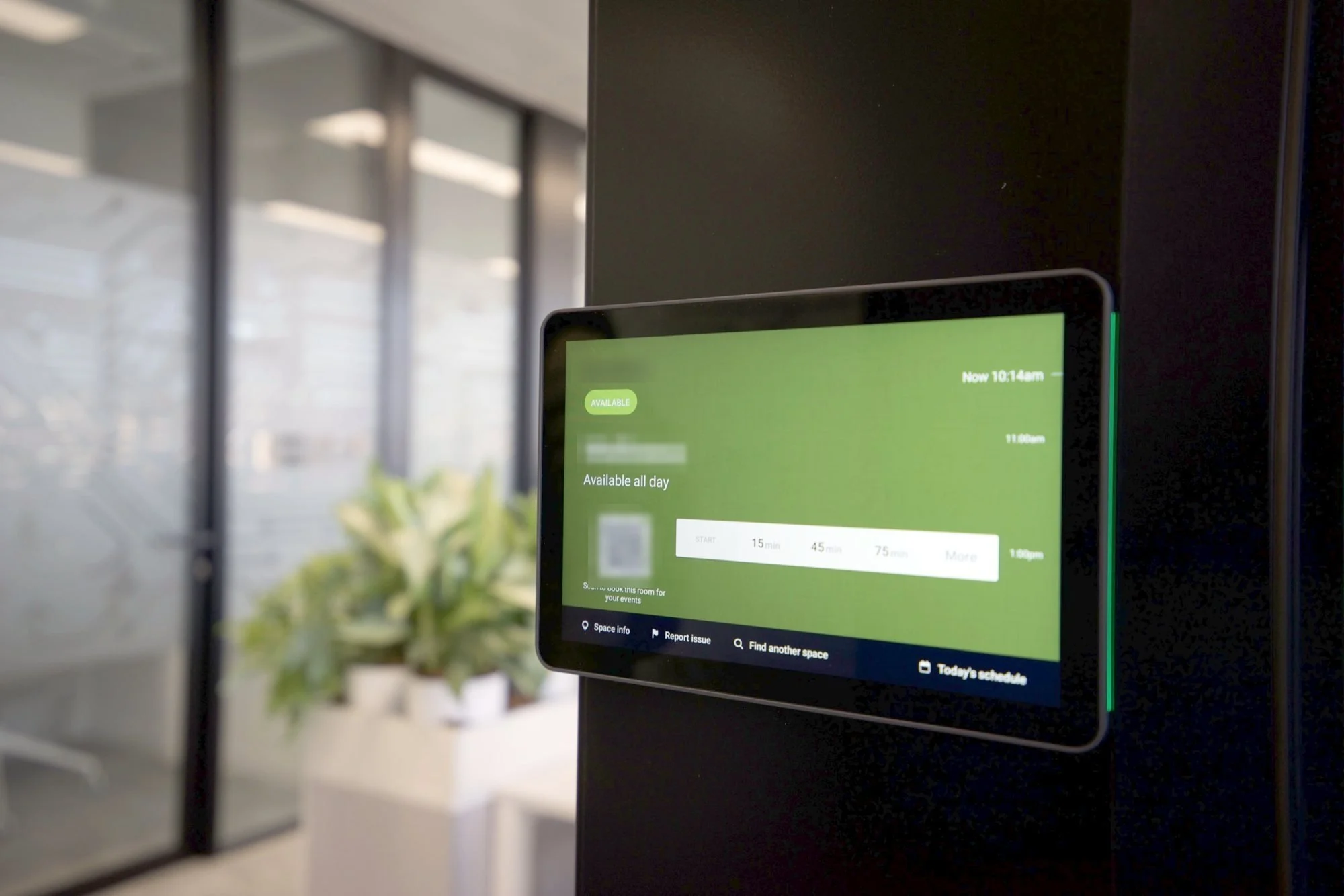
In many organisations, the feeling that “there are never any free rooms” sits alongside rooms that are empty for much of the day. The causes are well known: recurring meetings that no longer happen but still block the room, just-in-case bookings, rooms occupied without a booking and no way of telling from the corridor whether a room is actually free.
A well-implemented room booking system solves these problems, but how well it works depends less on the panel at the door than on how the calendars behind it are configured. This guide describes how to approach it on Microsoft 365 and Google Workspace: room accounts, booking policies, panels, auto-release, network and usage data.
Contents
- The room calendar is the foundation.
- Booking policies.
- Privacy: what the panel shows.
- Booking panels at the door.
- Check-in and auto-release.
- Finding rooms.
- Network and installation requirements.
- Usage data for decisions.
1. The room calendar is the foundation
Every room must exist as a resource in the email and calendar platform: in Microsoft 365, as a room mailbox in Exchange Online; in Google Workspace, as a calendar resource. It’s common to find rooms managed with a shared calendar, a spreadsheet or a receptionist’s personal calendar. None of these let the room accept or decline invitations automatically, or integrate with panels and video conferencing equipment.
Rule of thumb: one resource per room, with its capacity, location (building and floor) and equipment set in its properties. If the room has a video conferencing system, the same resource account is used on the device, so booked meetings show up in the room and start with one tap. We cover it in detail in the video conferencing rooms guide.
2. Booking policies
Policies decide how the room responds to each invitation and are what really bring order to how rooms are used. In Exchange Online they’re configured with the Set-CalendarProcessing cmdlet on the room mailbox; in Google Workspace, from the resource and calendar settings. The main parameters are:
- Auto-accept invitations when the room is free and decline when it isn’t (
AutomateProcessing AutoAcceptwithAllowConflictsoff). - Maximum duration of a booking (
MaximumDurationInMinutes), to avoid all-day blocks. - Booking window (
BookingWindowInDays), which limits how far ahead rooms can be booked and contains the effect of recurring meetings with no end date. - Who can book: rooms open to the whole organisation and restricted rooms, such as the executive or board room, that need a delegate’s approval.
Recurring meetings deserve particular attention: they’re the main cause of booked but empty rooms. A sensible booking window forces them to be renewed periodically, and the auto-release described below removes occurrences that no longer happen.
3. Privacy: what the panel shows
By default, a room’s calendar can show the meeting subject and the organiser’s name. On a panel in a corridor, that information is visible to anyone walking past, visitors included. A subject such as a client’s name, a deal or a recruitment process shouldn’t be shown on a meeting room door.
Rule of thumb: decide what’s shown by type of room. In Exchange, the DeleteSubject, AddOrganizerToSubject and DeleteComments parameters of Set-CalendarProcessing control whether the subject is kept, whether it’s replaced by the organiser’s name and whether details are removed. Meetings marked private must be respected on the panel too. For executive rooms, the usual approach is to show only “Busy” and the time slot.
4. Booking panels at the door
The panel shows the room’s status at a glance, usually with a green or red light visible from the corridor, the day’s schedule and the option to book on the spot for a set time. There are panels tied to video conferencing platforms, such as Microsoft Teams or Zoom Rooms panels running on certified hardware like Logitech Tap Scheduler, and third-party solutions that integrate directly with the calendar.
Rule of thumb: if the room has video conferencing, a panel from the same platform simplifies management, licensing and the user experience. In rooms without video conferencing, or with mixed platforms, a standalone calendar solution may suit better. Either way, the panel should support instant booking, extending the current meeting and reporting room issues.
5. Check-in and auto-release
It’s the feature with the biggest impact on real availability. When the meeting starts, attendees confirm they’re there from the panel or the video conferencing device. If nobody does within a set time, the system releases the booking and the room becomes available again. Some systems add occupancy sensors to detect presence without any user action.
Rule of thumb: turn it on with a reasonable grace period and tell staff beforehand, because it changes a habit. The organiser should get a notice when their booking is released; it helps recurring meetings that no longer happen get cancelled at source.
6. Finding rooms
For users to find the right room when scheduling a meeting, rooms must be organised by building and floor, with their capacity and equipment. In Microsoft 365, room lists and location metadata feed the room finder in Outlook and Teams; in Google Workspace, buildings and each resource’s features do the same job.
Consistent naming, including floor and capacity or following a clear rule, avoids confusion, especially in multi-floor offices or organisations with more than one site.
7. Network and installation requirements
- PoE power: panels are powered over the network cable itself, so there’s no need for a power socket by the door. Allow for the switch’s PoE budget.
- Cabling: a network point at panel height next to the door frame, best planned during the fit-out or partitioning phase.
- Segmentation: panels on the same VLAN as the room devices, with DHCP reservations and internet access limited to the platform and management services.
- Time and certificates: NTP time sync; a clock that drifts or SSL inspection on the platform’s traffic causes calendar sync errors.
- Mounting: at a comfortable height, on a wall or on glass with the right bracket, facing the corridor.
8. Usage data for decisions
A well-configured booking system produces real usage data: occupancy by room and time slot, bookings released for no-shows, average meeting length and attendees against room capacity. With that data you can decide soundly whether you’re short of small rooms, whether a large room is nearly always used by two people or whether to redistribute space, before starting a refit.
Configuration first, panel second
A panel at the door shows what the room’s calendar says. If resource accounts, booking policies and privacy aren’t well defined, the panel will only put the existing mess on display.
When specialist help is needed
In our room booking service we cover the whole system: reviewing and configuring resource accounts and their policies, privacy rules, choosing and installing panels, preparing the network and rolling it out with staff.
When booking is part of a wider workplace project, we integrate it with the meeting room and video conferencing equipment. And for an overall view of your infrastructure, you can use our network self-assessment.